

You found the perfect pair of shoes, but you want to see them in burgundy before you buy. Or you sell shoes online and need six colorways for one style, with only one sample in the studio. Either way, a new photoshoot is the slow answer.
Photoshop can do the job if you have the skills. It gives you fine control, but you need to mask every edge by hand, and one pair can take an hour. Its hue slider also struggles with the most common shoes of all. Black and white shoes have no hue to shift, so the color barely moves.
This guide shows you how to change shoes color in photo with AI Recolor, a free AI shoe color changer from Fashion Diffusion. You upload one shoe photo, pick a color and get a clean result with the original material looking natural. You will also find a colorway table with HEX codes you can paste straight into the tool.
How to Change Shoes Color in Photo with AI Recolor
AI Recolor repaints your shoes in any color you like and leaves the rest of the photo alone. It is free to try and takes four quick steps.
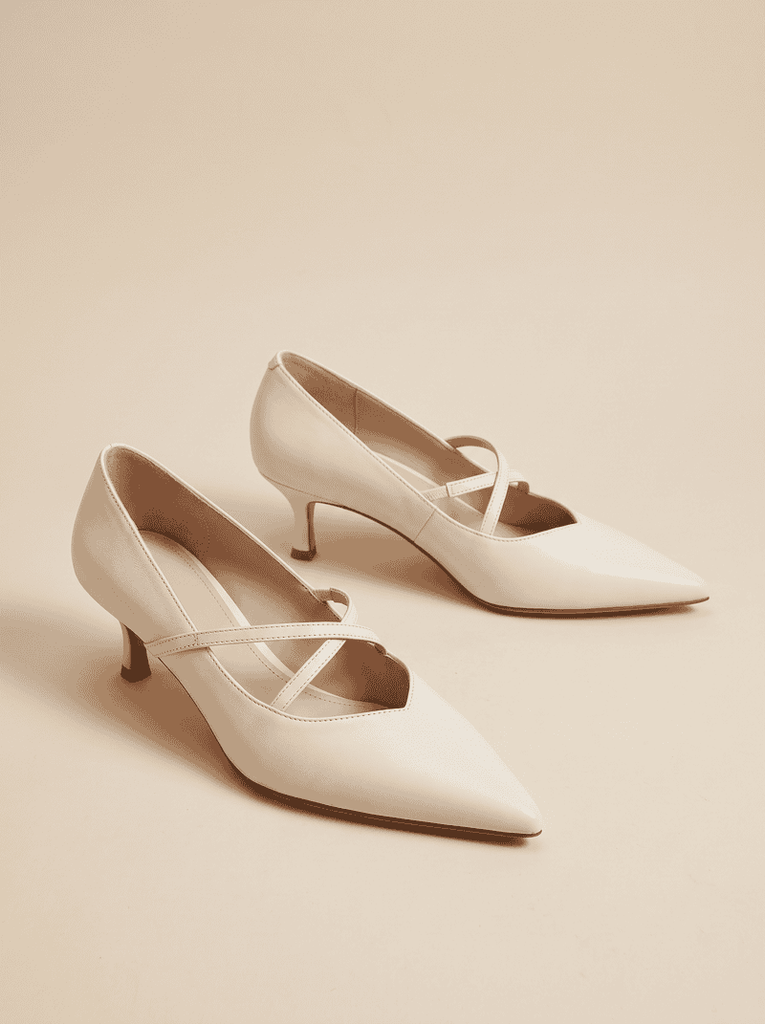
Step 1: Upload Your Shoe Photo
Upload a sharp shoe photo with even light, where both shoes are fully in frame. A clean background makes the edges easier for the AI to read. PNG, JPG and WebP files all work.
Step 2: Choose Entire Product or Specific Area
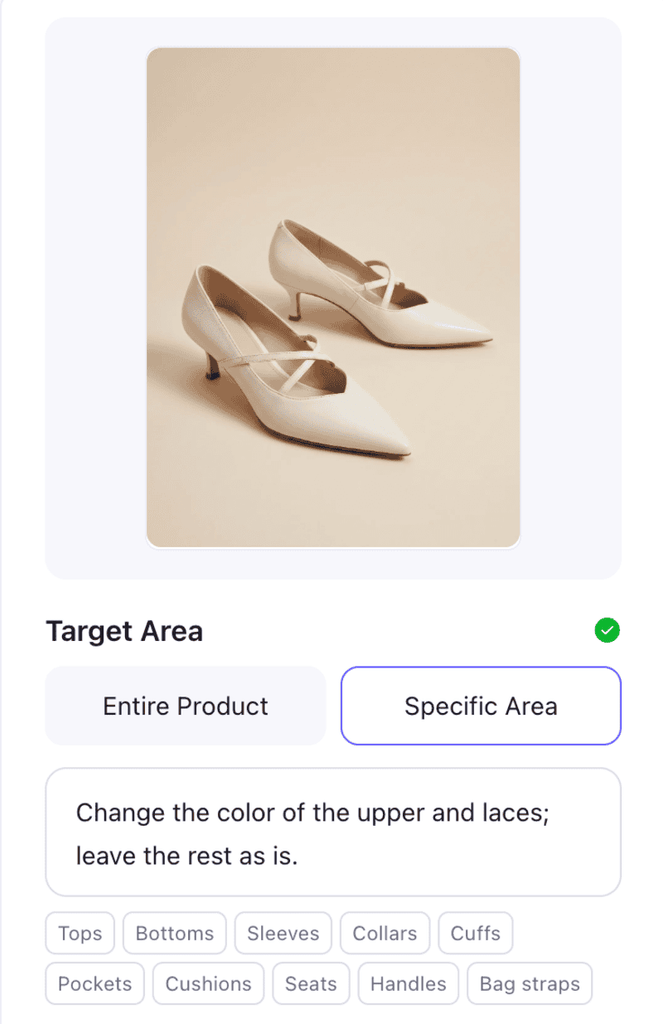
Under Target Area, choose Entire Product to recolor the whole shoe. Choose Specific Area when you only want to change one part, then type which part it is, such as “the sole” or “the toe cap.” This is how you get two-tone looks without touching the rest of the shoe.
Step 3: Pick an Exact Color
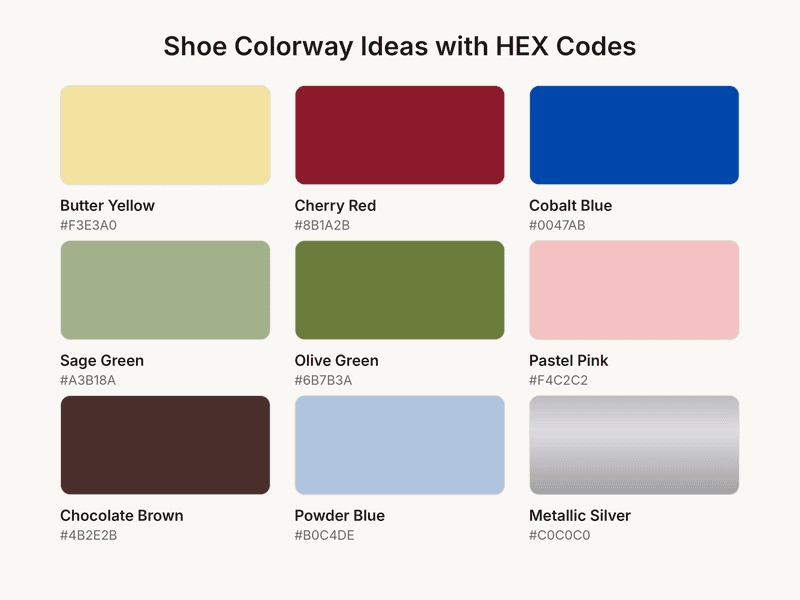
Select a color from the palette, type a HEX code or use the eyedropper to sample a color. HEX codes are the best choice for brand work, because every colorway matches your swatch card exactly.
Need a starting point? Here are nine popular shoe colors to try. The colorway table further down lists each one with its HEX code and styling tips.
Step 4: Set the Resolution and Generate
Choose 2K for social posts or 4K for product pages and zoom views. Click Generate and your recolored shoes appear in seconds. Run it again with a new HEX code to build a full set of colorways from the same photo.
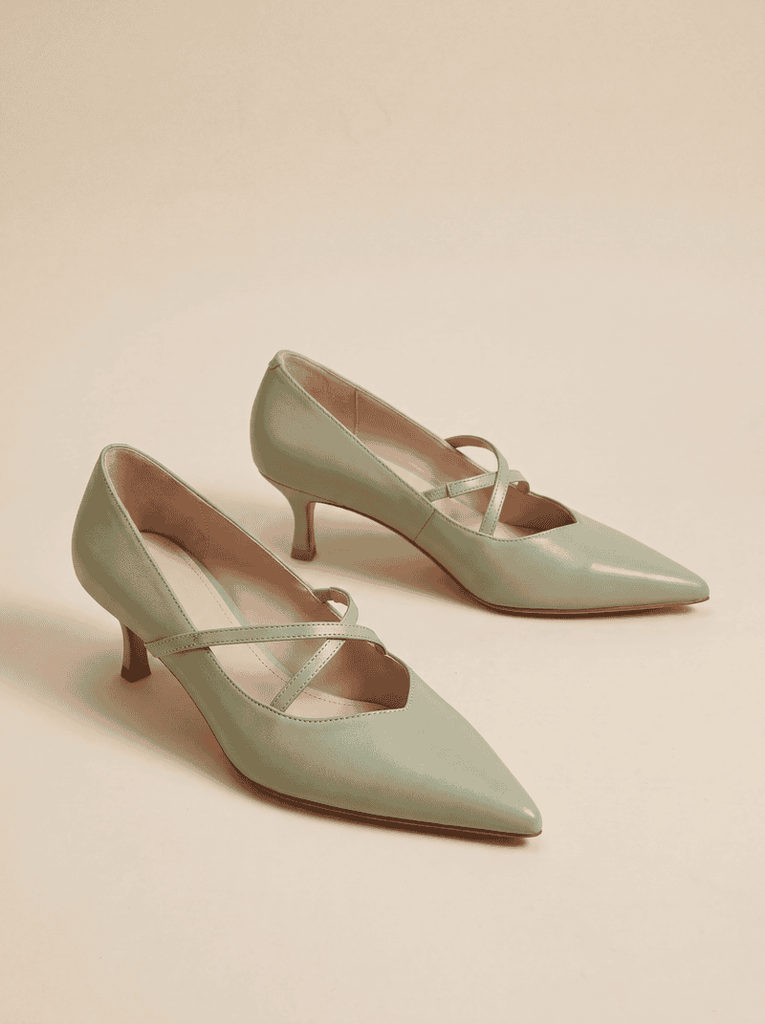
Prefer to describe the change in words? AI Inpainting offers a prompt-based way to do the same job. Write something like the white sneakers become sage green suede, soles stay white and the AI repaints only the shoes.
Shoe Recolor Examples: Before and After
Here is what one upload and one color change can do. Each pair below started as a single on-feet photo and was recolored with AI Recolor.
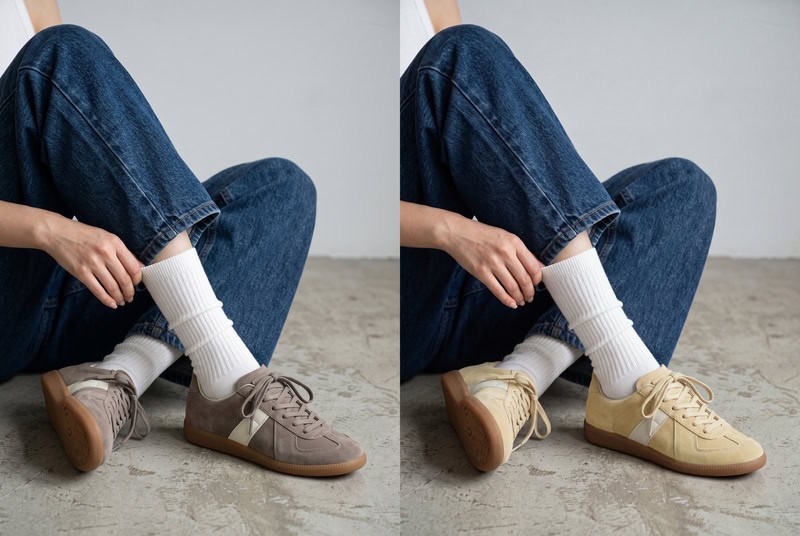
Suede Retro Trainers to Butter Yellow
This is the easiest way to change sneaker color without a reshoot. Slim retro trainers in taupe suede turn a soft butter yellow (#F3E3A0). The gum sole, the white socks and the denim hem stay exactly as they were.
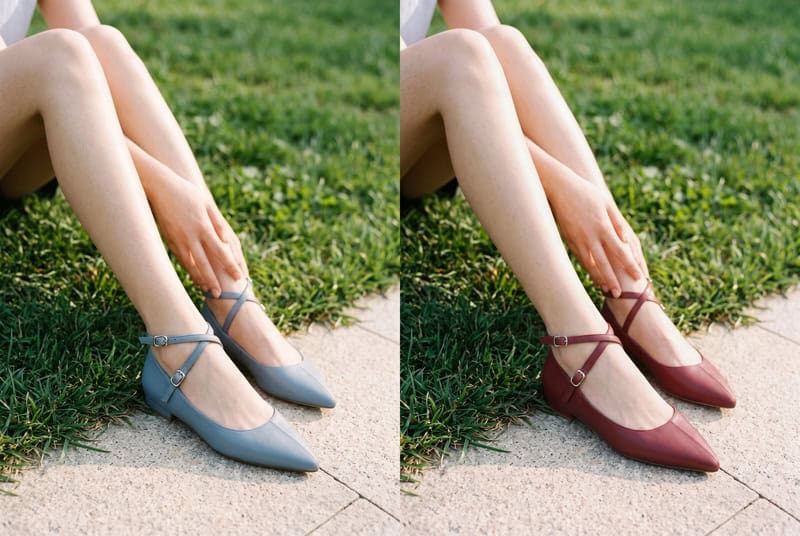
Strappy Pointed Flats to Cherry Red
Pointed leather flats with thin criss-cross ankle straps go from dusty blue to cherry red (#8B1A2B). Every strap and buckle keeps its shape, which is where most manual edits fall apart.
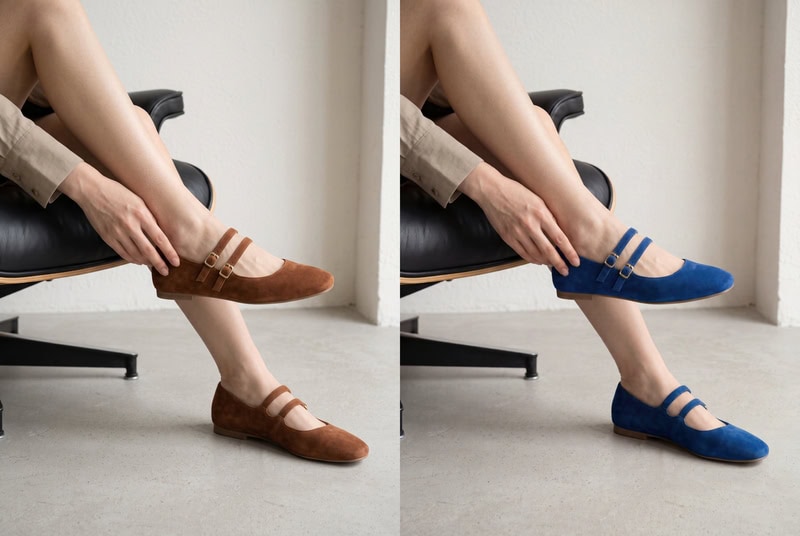
Brown Suede Mary Janes to Cobalt Blue
Double-strap Mary Jane flats move from chestnut suede to a bold cobalt blue (#0047AB). The buckles keep their gold tone and the suede keeps its velvety finish.
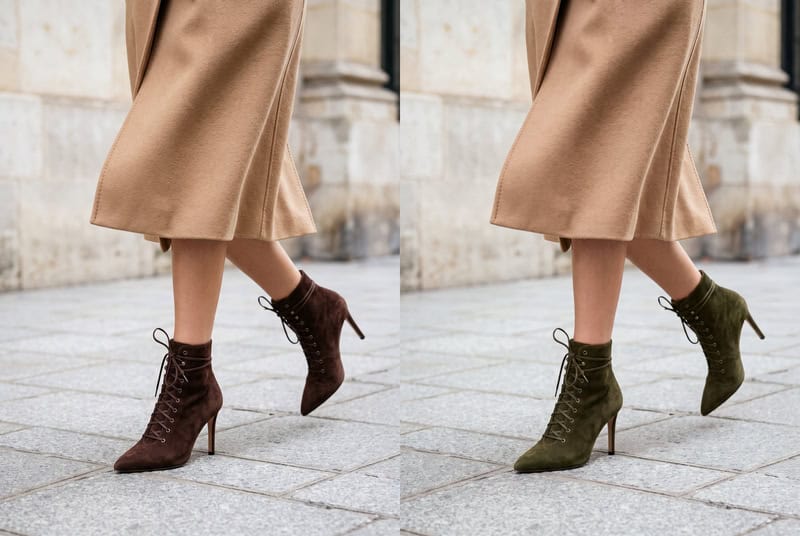
Lace-Up Stiletto Boots to Olive Green
Pointed lace-up ankle boots on a slim stiletto shift from chocolate brown to olive green (#6B7B3A). The laces, eyelets and suede nap all stay crisp.
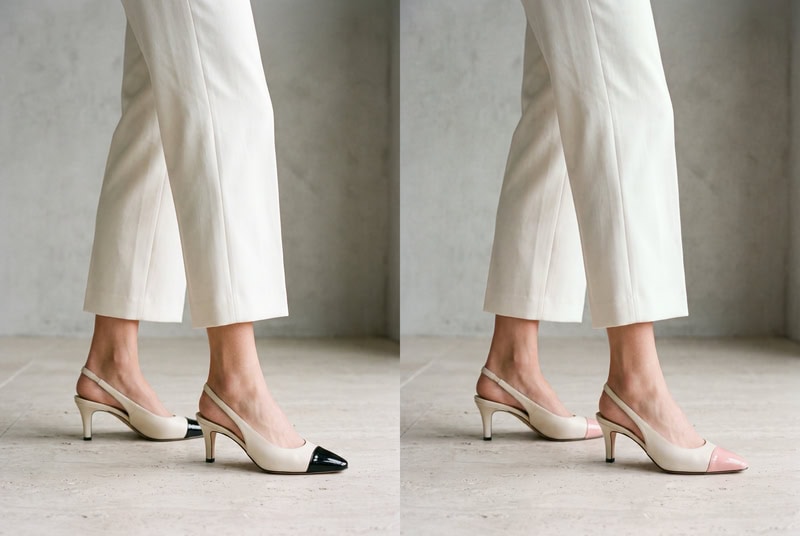
Two-Tone Slingbacks, Toe Cap Only
Using Specific Area, only the black toe cap of these cream slingbacks changes to pastel pink (#F4C2C2). Even black, the color Photoshop struggles with most, switches cleanly while the cream body stays untouched.
Shoe Colorway Ideas to Try
The table below breaks down the nine colors from the palette earlier, with HEX codes you can copy into AI Recolor.
| Color | HEX Code | Best For | Pairs Well With |
| Butter Yellow | #F3E3A0 | Retro trainers, ballet flats | Denim, white tees, linen |
| Cherry Red | #8B1A2B | Pointed flats, loafers, kitten heels | Black, grey, cream knits |
| Cobalt Blue | #0047AB | Heels, slingbacks | White, camel, neutral tailoring |
| Sage Green | #A3B18A | Sneakers, mules | Beige, olive, washed denim |
| Olive Green | #6B7B3A | Suede boots, loafers | Brown leather, cream, rust |
| Pastel Pink | #F4C2C2 | Toe caps, slingbacks, sandals | Light denim, grey, white |
| Chocolate Brown | #4B2E2B | Boots, loafers, Mary Janes | Cream, camel, burgundy |
| Powder Blue | #B0C4DE | Ballet flats, sneakers | White, navy, soft grey |
| Metallic Silver | #C0C0C0 | Flats, party heels | All black, satin, sequins |
Tips for Natural-Looking Results
Most attempts to change shoe color look real when the source photo is good. A few small choices before you upload make a big difference.
Use Even, Soft Light
Harsh sunlight creates deep shadows and bright hot spots. The AI has to guess the color in those areas. Soft daylight or a light box gives it a clean surface to work with.
Keep the Shoes Fully Visible
Trouser hems, bag straps or a hand over the toe confuse the edges. Show the whole shoe from heel to toe whenever you can.
Contrast the Shoes with the Background
White sneakers on a white floor blur into the background. Shoot light shoes on a mid-tone surface and dark shoes on a light one.
Expect Extra Care for Dark to Light
Turning black shoes pastel is the biggest jump. If the first result looks flat, generate again or try a slightly deeper shade first.
Fix Common Shoe Recolor Problems
Even good tools slip now and then. Most issues have a quick fix, and the table below covers the ones you are most likely to see.
| Problem | Why It Happens | How to Fix It |
| Color spills onto trousers or the floor | The shoe edge blends into a similar color nearby | Use Specific Area or pick a photo with more contrast |
| Sole changes along with the upper | Entire Product treats the shoe as one piece | Switch to Specific Area and type “the upper only” |
| Texture looks flat | Low resolution or a blurry source photo | Upload a sharper photo and generate in 4K |
| The two shoes look slightly different | Uneven light falls on each shoe | Reshoot in even light or recolor each shoe separately |
| Shiny spots look grey | Strong reflections hide the real surface | Use softer light or accept a slightly darker shade |
Recolor or Try On a Different Pair?
Sometimes a new color is not enough, and you want to see a different shoe altogether. That is a different job from recoloring.
Recolor keeps the exact shoe and changes only its color. To see a new style on your own feet, use AI virtual try-on for shoes instead. Upload a photo of the shoe you like and a photo of yourself or a model, and the AI places that pair on the feet. Our virtual sneaker try-on guide walks through the full process if sneakers are your thing.
Give Your Shoes a New Colorway in Seconds
You now know how to change shoes color in photo without a reshoot or a Photoshop course. Upload one shoe photo, paste a HEX code from the colorway table and see the new look in seconds. Try it now with Fashion Diffusion for free.
FAQ
Yes. Choose Specific Area under Target Area and type the part you want to change, such as the sole, the toe cap or the upper. Everything else keeps its original color, which is ideal for two-tone looks.
Yes. AI Recolor changes the color while keeping material details like leather grain and suede nap. For the sharpest texture, start from a clear photo and generate in 4K.
Yes. You can use AI Recolor or AI Inpainting. In Recolor, choose Specific Area and type the part you want to change, such as “the sneakers” or “the sneaker soles,” so the outfit stays the same. In Inpainting, describe both the part and the new color, such as “turn her sneakers cobalt blue and keep the white soles.”
Yes. Recolored images download in high resolution and can be used commercially. Many sellers use one sample photo to create every colorway for a product page.
Yes. Fashion Diffusion gives new users free credits when they sign up, which you can use on AI Recolor right away. Paid plans are available for higher-volume use.


