

Swimwear shoots are expensive, slow, and hard to scale. Booking a photographer, coordinating models, and styling dozens of bikini looks can take weeks — and the moment a colorway changes, the whole process starts over.
Fashion Diffusion removes that bottleneck entirely: upload a garment image, select an AI model, and the tool swaps the outfit in seconds. Brands use it to preview collections, generate lookbook content, and test styles across different model types — all without a studio session. Start with the Change Clothes to a Bikini tool to see it in action.
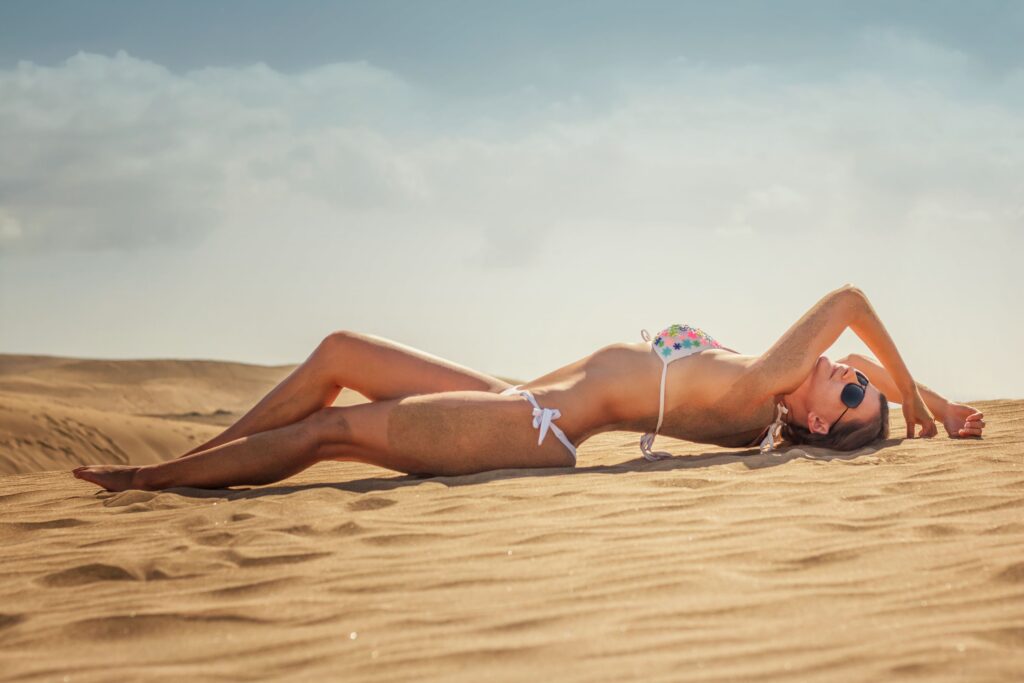
Why Fashion Brands Use AI to Change Clothes to a Bikini
Fashion brands are turning to AI clothes changers for swimwear production for several reasons:
Scale product visuals without scaling costs
A bikini that comes in eight colorways used to mean eight separate shots. With Fashion Diffusion, one base image generates all eight — same model, same pose, different colors,all in minutes.
Test styles before sampling
Design teams use the Virtual Try-On workflow to visualize how a new cut reads on a body before committing to a physical sample. Catching a proportion issue at the AI stage is far cheaper than catching it at the fitting stage.
Diversify model representation
Showing swimwear across different body types, skin tones, and aesthetics matters to today’s shoppers. Rotating AI models across the same garment makes inclusive imagery a standard part of production, not an add-on.
Feed social and campaign content continuously
Seasonal swimwear campaigns need a steady stream of fresh visuals. The AI Outfit Generator handles content variations — different backgrounds, styling details, model looks — fast enough to keep up with a weekly posting schedule.
The result is a swimwear production workflow that moves at the speed of your creative decisions, not your logistics.
How to Change Clothes to a Bikini with Fashion Diffusion
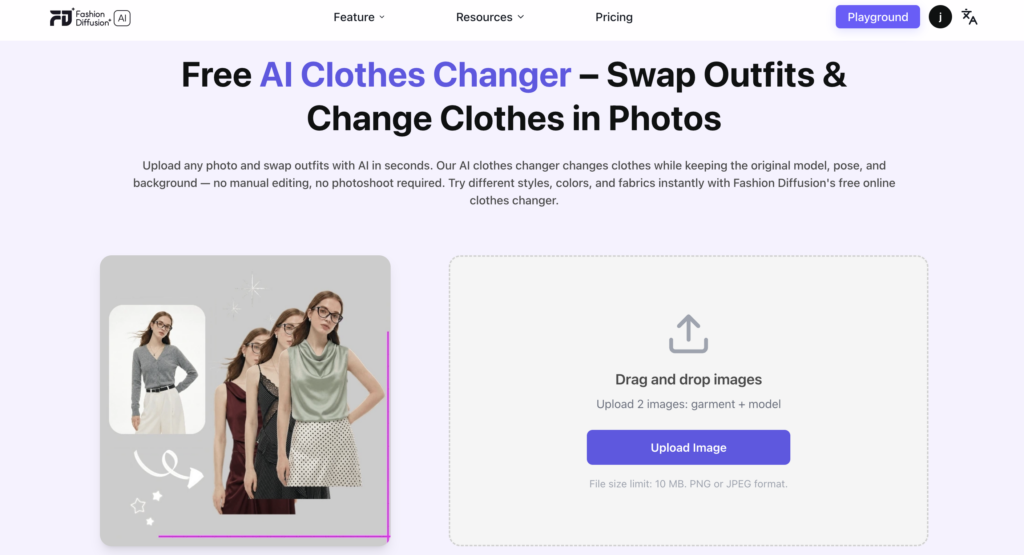
The process takes under a minute from upload to result. Here’s how it works:
Step 1: Open the AI Clothes Changer
Open the tool from Fashion Diffusion’s main dashboard.
Step 2: Upload Two Images
One of the bikini or swimwear garment, and one of the model you want to dress. Both can be your own product photos or AI-generated references.
Step 3: Move to the Playground
Once both images are uploaded, the tool automatically carries them into the Virtual Try-On workspace, so nothing needs to be re-uploaded or reconfigured.
Step 4: Add Extra Notes
This is where you can direct the output: specify a bikini style detail (“keep the halter tie visible”), a fit preference, or a styling note like “beach setting, natural light.”
Step 5: Set Output Preferences
choose Aspect Ratio, Resolution, and Output Count based on where the image will be used (square for Instagram, portrait for PDP, high-res for print).
Step 6: Generate
Results come back in seconds, ready to download or iterate on.
Each generation keeps the garment’s original color, texture, and silhouette intact — so a white triangle bikini stays a white triangle bikini, fitted to the chosen model rather than distorted by the swap.
What Swimwear Styles Can You Generate
Fashion Diffusion’s AI Clothes Changer handles the full range of swimwear. The tool reads garment structure accurately, so different cuts and silhouettes render distinctly rather than blending into a generic “swimsuit” output.
Styles that work well include:
- Bikinis — triangle, bandeau, halter, high-waisted, and sporty crop styles. Tops and bottoms are treated as a set or separately, so mix-and-match combinations are easy to preview across colorways.
- One-piece swimsuits — racerback, plunge, cut-out, and wrap styles, structured or minimal. Useful for brands that want to show how a structured silhouette holds its shape across different body types.
- Tankinis — two-piece with more torso coverage. Particularly practical for brands targeting a broader age range or modest swimwear segments.
- Beach cover-ups — sheer kaftans, linen shirts, sarongs, and wrap skirts layered over swimwear. The tool renders layering and fabric transparency accurately, making cover-up styling easier to visualize.
- Men’s swimwear — board shorts, swim trunks, and rash guards. The same garment-swap workflow applies, so a single trunk style can be shown across multiple model types quickly.
Tips for Better Bikini AI Try-On Results
The quality of your output depends heavily on the quality of your inputs. A few adjustments at the upload stage make a significant difference in how accurately the AI renders the final look.
Use clean garment images
Flat lays on a white or neutral background work best — the AI reads fabric edges, texture, and color most accurately when there’s no visual noise competing with the garment.
Choose a model photo with a clear body outline
Front-facing poses with arms slightly away from the torso give the tool the most surface area to work with.
Match the garment scale to the model frame
Uploading a macro close-up of a bikini top against a full-body model image creates a scale mismatch the AI has to compensate for.
Use Extra Notes to lock in specific details
If the bikini has a distinctive feature, a tie side, a specific strap configuration, a textured fabric — call it out in the notes field.
Run multiple outputs before selecting
Setting Output Count to 3 or more on the first generation gives you a range to choose from rather than committing to a single render.
Conclusion
Swimwear is a visual category, shoppers decide fast, and the image does most of the selling. Brands that move quickly on bikini visuals have a real edge, and that’s exactly what Fashion Diffusion is built for.
From early concept to final campaign asset, Fashion Diffusion AI covers the full production arc — at a fraction of the time and cost of a traditional shoot. Try the AI Clothes Changer and get your first result in under a minute.
FAQs
Yes. Fashion Diffusion offers a free virtual try-on for swimwear — upload your garment and model images and generate your first result without a paid plan.
The tool preserves the garment’s original color, texture, and silhouette throughout the swap. A printed fabric stays printed; a white bandeau stays white. The model changes, the garment does not.
The tool accepts PNG and JPEG files up to 10 MB per image. For best results, use clean flat-lay garment shots and front-facing model photos with a clear body outline.


